# Browse commands with the interactive menu
`pear --menu` opens an interactive, terminal-driven menu for the whole CLI: pick a command from a filterable list, fill in its arguments and flags as a real form, confirm, and Pear runs exactly what typing the equivalent command would have run. It's the fastest way to discover what a command needs without leaving your terminal to check [the reference](/pear/reference/pear/cli).
Requires **Pear 3.2.0 or newer**—run [`pear versions`](/pear/reference/pear/cli#pear-versions) to check what you're on. Not available on 3.1.x or earlier.
**Need the `pear` CLI?** Install it from **[install.pears.com](https://install.pears.com)**, or prefix any command below with `npx`. See [Install & upgrade](/pear/reference/pear/cli#install) for details.
## Launch the menu [#launch-the-menu]
```console skip="interactive"
pear --menu
```
This needs an interactive terminal (a TTY). Run it from a script, a CI job, or any other non-interactive shell and it exits immediately with `pear --menu requires an interactive terminal`.
For scripts and automation, use the command's flags directly instead—see [Scripting with `--json`](/pear/reference/pear/cli#json-output).
## Find a command [#find-a-command]
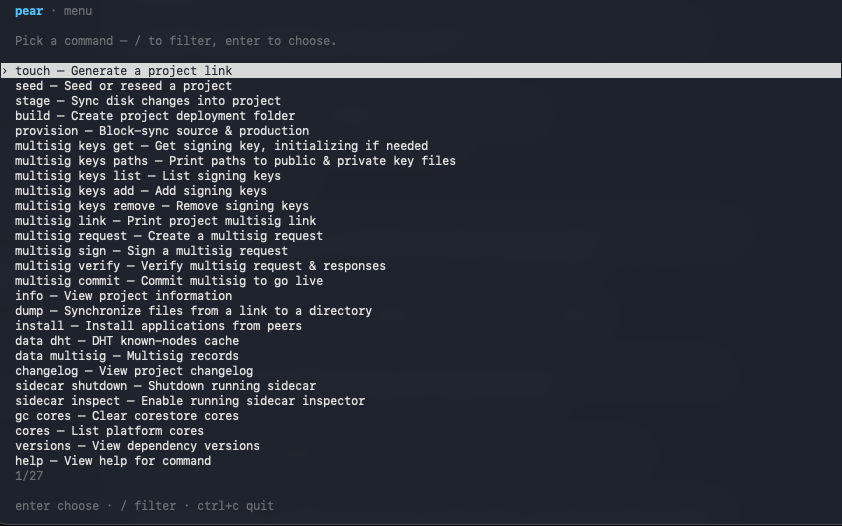
The menu opens on a filterable list of every top-level command, type to narrow the list, then pick the one you want.
Commands with subcommands (like [`gc`](/pear/reference/pear/cli#pear-gc) or [`multisig`](/pear/reference/pear/cli#pear-multisig)) drill into their own filterable list of subcommands.
* `/` — start filtering
* `enter` — choose the highlighted command
* `ctrl+c` — quit
## Fill in the form [#fill-in-the-form]
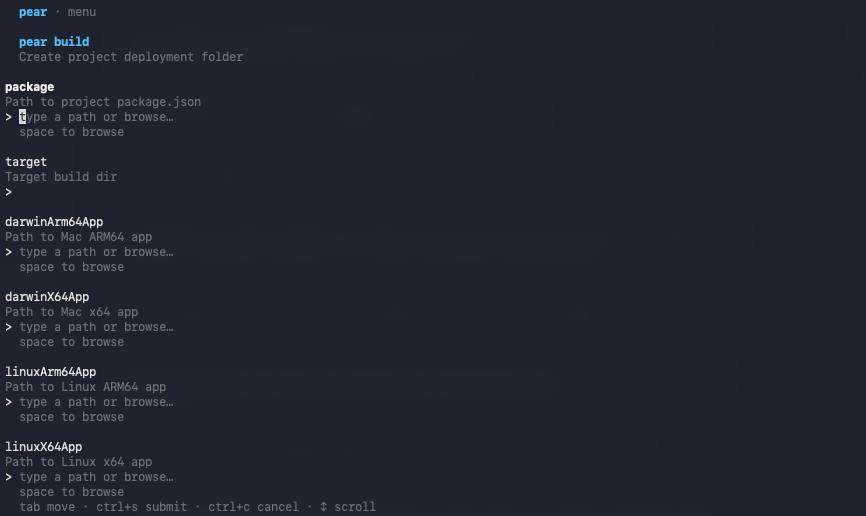
Once you pick a command, the menu builds a real form from its arguments and flags—one field per parameter, using the same descriptions and defaults documented on the [CLI reference](/pear/reference/pear/cli).
Fill in what you need, leave the rest at their defaults, and confirm to run the command.
The result is identical to typing the equivalent `pear --flags` yourself—the menu is a different way to assemble the same call, not a different tool.
* `tab` — move between fields
* `ctrl+s` — submit and run the command
* `ctrl+c` — cancel
Forms with more fields than fit on screen also show `↕ scroll`.
From Pear 3.3.0 each field also carries a hint covering that argument or flag's constraints, how it interacts with the others, and how it fails—for example that `pear stage --dry-run` does not guard `--truncate`, or that `--ignore` accepts glob patterns while `--only` matches by path prefix. These hints appear only in the menu; `pear help ` shows the one-line descriptions without them.
## When to use it [#when-to-use-it]
Use the menu when you're exploring a command's flags—new to Pear, or new to a command you don't use often—and don't want to context-switch to [the reference](/pear/reference/pear/cli) to check a flag's spelling or default.
Use flags directly once you know the shape of the command you want, for scripts, CI, or anything else that needs to run non-interactively.
## See also [#see-also]
* [Command Line Interface (CLI) reference](/pear/reference/pear/cli)—the full command list the menu is built from.
* [Scripting with `--json`](/pear/reference/pear/cli#json-output)—the non-interactive path for automation.
* [Troubleshoot common issues](/pear/how-to/troubleshooting)—for problems beyond what this guide covers.